Notes and Activities 내용
Work Notes and Additional Comments
Work notes와 Additional Comments에 대한 내용
On a record, you can use the Notes tab to communicate to stakeholders and document task activities throughout the task’s lifecycle.
record에서 Notes 탭을 사용하면 관련자와 소통하고 작업중의 활동을 문서화할 수 있다. 추가 설명을 포함하고 Notes 탭 아래에 여러 필드를 표시할 수 있다.
Once enabled, you can then select the Show one journal field icon to only display the Work notes field.
활성화가 되면 journal field icon 을 선택해서 메모한것만 표시할 수 있다.
If the Work notes field is the only field displayed, you may select the Additional Comments(Customer visible) checkbox(not shown below, but you may practice this in your instance).
메모한 게 표시되는 유일한 필드의 경우에는, 추가 설명 확인란(Additional Comments)을 선택할 수 있다. 이 추가 설명은 customer에게 보여질 수 있고, instance(실습환경)에서 연습할 수 있다.
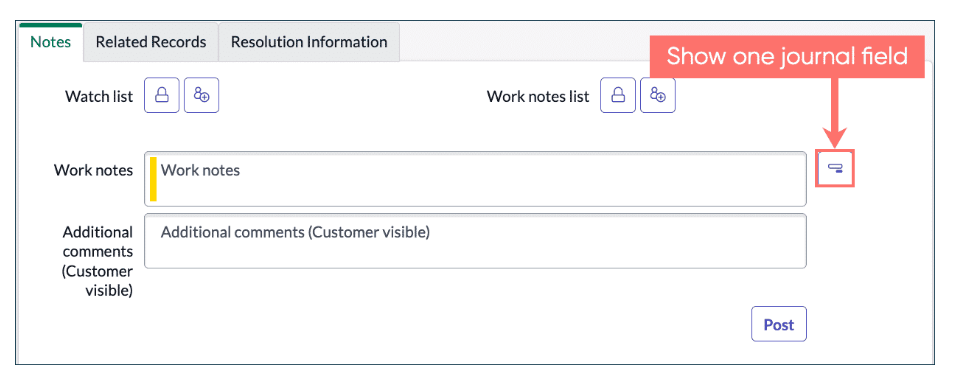
Work notes 에는 메모할 것들을 쓰고, Additional comments에다가는 Customer에게 더 보여져야 할 내용들을 작성하고, Show one journal field 버튼을 누르면 고객에게 보여질지 말지 작성하는 것인가보다.
Work notes
This field provides a way to document all the technical and behind-the-scenes work on a task.
Work notes 필드는 작업에 대한 비하인드 스토리 작업을 문서화하는 방법을 제공한다.
Upon saving, Work notes are recorded in the record Activity section, where they can be viewed by users with permissions to view the record.
저장할 때, Work notes는 record 보기 권한을 가진 user가 볼 수 있는데에 기록된다
Work notes are only visible to internal users and are not available to external users or customers.
Work notes는 내부 user에게만 표시되고, customer나 외부인은 사용할 수 없다.
Additional comments(Customer visible)
추가적인 댓글이란 의미이다.
this field provides a way to communicate with the requester and other stakeholders directly in ServiceNow.
이 Additional comments는 ServiceNow에서 의사소통을 요청하는 사람이나, 기타 이해관계자들(stakeholders)과 통신할 수 있는 방법을 제공한다.
For example, you may want the customer to stay up to date of progress on thier record or request additional information.
예를 들면, customer가 현재 상황에서 record 최신화를 요청하거나, 추가정보를 요청할 수 있다.
Upon saving, the additional comments(including updated information and comments history) are emailed directly to the requester.
저장할 때, 업데이트 된 정보나 댓글이 포함된 additional comments를 requester에게 직접 이메일로 전송이 된다.
When the requester receives an email notification containing additional comments, they can reply to the email, and their feedback will also be documented in the Activity log of the record!
requester가 그 이메일을 받으면, 회신할 수 있고, 그 피드백들은 로그에 기록된다.
Additional comments are also visible on the record in the Service Portal and Employee Center.
Additional comments는 Service Portal이나 Employee Center에서도 볼 수 있다.
Activity section
The Activity section located under the Notes tab provides a complete history of a record, from creation through closure.
Activity section은 Notes 탭 아래에 위치하고 있고, 생성되고 종료되기까지의 전체 기록을 제공한다.
It details who made an update, what the update was, and when the update was made.
update한 사람, 내용, 시기에 대해 자세하게 작성되어있다.
Selecting the filter icon allows activity information to be filtered, based on your desired categories of information.
filter icon을 누르면, 원하는 정보 범위에 따라 활동 정보들을 필터링 할 수 있다.
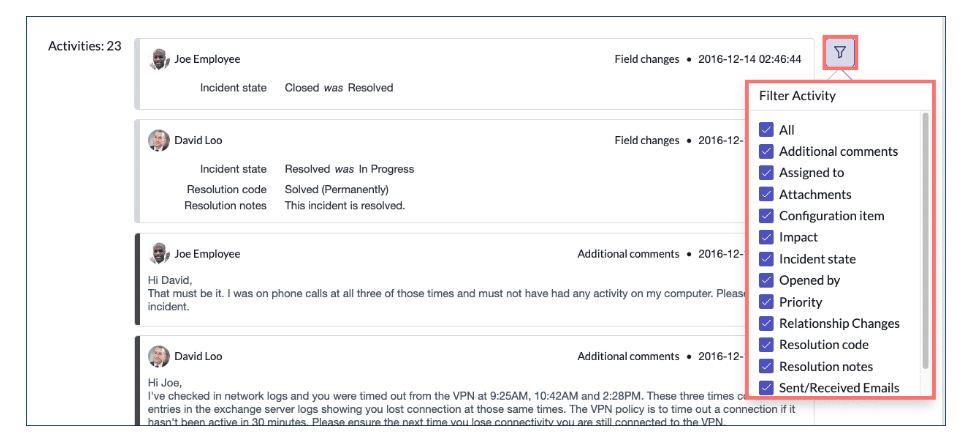
filter icon 눌러서 활동정보 필터링 하는 스크린샷
The Activity section, which is read-only, documents when a change was made and by whom.
Activity section은, 읽기전용이고, 변경시기와 작성자에 대해 기록한다.
These changes include assignment and reassignment, additional comments and work notes, updated field values, state changes, and more.
이런 변경은, 할당이나 재할당, additional comments 와 work notes, 업데이트된 필드값, 상태 변경등이 포함된다.
Activity Stream inline editing
Activity 활동들 inline에서 편집하기
The Activity Stream inline editor enables users to contribute to actual work within a record without opening a form interface.
Activity Stream inline editor를 사용하면, user가 form interface 없이 실제 작업에 기여할 수 있다.
Just like real-time editing on a form, inline commenting on the activity stream means you can annotate records as updates are made, allowing multiplied efforts across several pieces of work simultaneously.
실시간 편집과 더불어, inline commenting 인라인 주석은 업데이트가 진행될 때 record에 주석을 달 수 있기에 여러 작업에서 동시에 작업할 수 있다는 장점이 있다.
To do so, navigate to a list of active task records, then follow the steps below.
그렇게 하려면, 다음과 같이 단계를 따라야 한다.
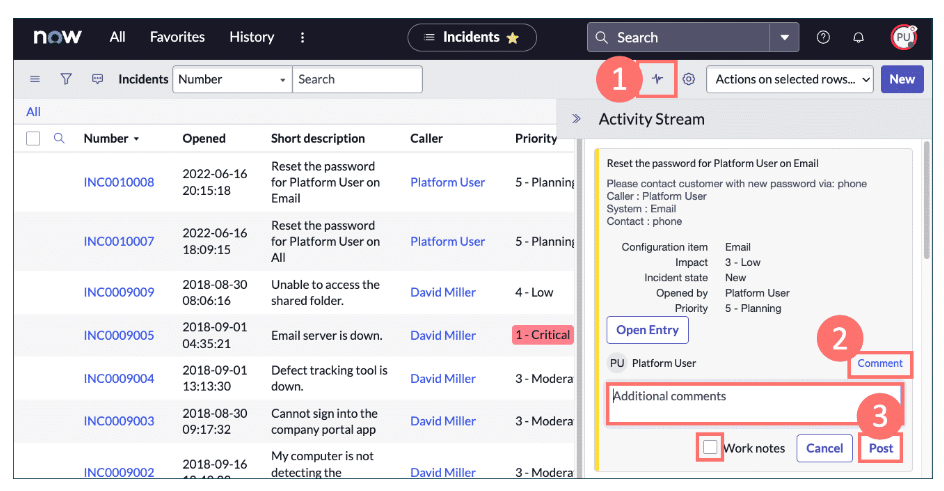
- Select the Show Activity Stream icon and it will appear in a flyout window from the list header.
1번 옆에있는 아이콘 누르면, 헤더가 나올거고
- With the window open, scroll down to browse the records recently updated and hover over an update you wish to comment, then select Comment.
창이 열리면, 아래로 스크롤하고 최근에 update 된 record를 찾아보고, Comment 버튼 누른다
- Enter your comment into the text field, (select the checkbox for Work Notes or Additional comments (Customer visible) if applicable), then select the Post button.
text field에다가 comment 입력하고, Work notes에 해당하는지 Additional comments에 해당하는지 확인란 선택한 후에 Post 버튼 누른다.
Visual Task Boards(VTBs)
보이는 태스크 보드라는 의미
Transform your lists and forms into an interactive graphical experience using Visual Task Boards(VTBs).
Visual Task Boards를 이용해서 list나 form을 인터렉티브 그래픽 환경으로 변환한다.
어떤 일을 수행하냐면,
- Manage tasks through a visual, drag-and-drop interface
drag-and-drop 마우스 갖다 끌어서 작업관리 가능
- Identify process bottlenecks at a glance, in real-time
process 병목변항을 실시간으로 확인가능
- Track embedded activity screens to view updates all in one place
모든 업데이트를 한곳에서 확인 가능
Select the plus (+) signs below to learn more about the different sections of a VTB.
Visual Task Board의 여러 섹션들을 알아보려면 + 버튼을 선택
댓글남기기